Recovering Argus Monitor Configuration From An Old Windows Installation Image or Disk
I recently re-imaged my desktop and found that I forgot to backup my Argus Monitor configuration. Argus Monitor is a fantastic bit of software that monitors your system’s environmental health, supports highly robust fan curve configurations, alerts on disk drive SMART issues, and more. I really didn’t want to setup all new fan curves that I painstakingly made in my prior install.
Luckily I had a copy of my old Windows installation, I used ‘ddrescue’ to clone it to a spare external SSD before re-installing. With a little online digging I found that Argus stores it’s configuration in the Windows Registry. I plugged in my SSD as an external disk and it showed up as my E: drive.
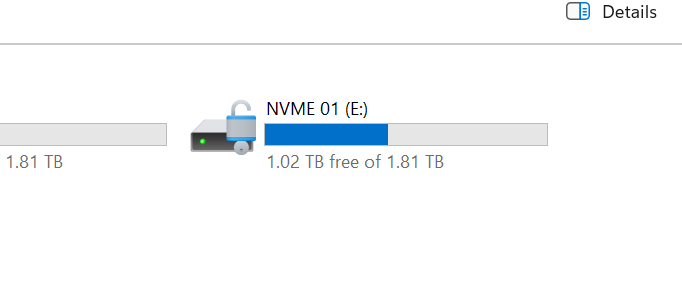
My drive was BitLocker protected. Everyone should use BitLocker, it keeps your disk is encrypted! If you didn’t save your BitLocker recovery key I would check your Microsoft account, Windows backs them up there.
On my new system my user account isn’t the same as on the old image, so I couldn’t just copy the files I needed by dragging and dropping. I wanted to be able to boot my old image as a virtual machine if I absolutely had to, so I didn’t want to mess with ACLs and possibly break the old image. Instead of taking ownership I decided to work around this issue.
Robocopy can ignore these ACLs. I launched PowerShell as an admin and ran the following command:
PS C:\Users\dmitr> mkdir C:\temp\
    Directory: C:\
Mode                 LastWriteTime         Length Name
----                 -------------         ------ ----
d----           3/26/2026  12:09 AM                temp
PS C:\Users\dmitr> robocopy "E:\Users\Dmitry\" "C:\temp" NTUSER.DAT /B
-------------------------------------------------------------------------------
   ROBOCOPY     ::     Robust File Copy for Windows
-------------------------------------------------------------------------------
  Started : Thursday, March 26, 2026 12:27:14 AM
   Source : E:\Users\Dmitry\
     Dest : C:\temp\
    Files : NTUSER.DAT
  Options : /DCOPY:DA /COPY:DAT /B /R:1000000 /W:30
------------------------------------------------------------------------------
                           1    E:\Users\Dmitry\
100%        New File              16.0 m        NTUSER.DAT
------------------------------------------------------------------------------
               Total    Copied   Skipped  Mismatch    FAILED    Extras
    Dirs :         1         0         1         0         0         0
   Files :         1         1         0         0         0         0
   Bytes :   16.00 m   16.00 m         0         0         0         0
   Times :   0:00:00   0:00:00                       0:00:00   0:00:00

   Speed :           356,962,042 Bytes/sec.
   Speed :            20,425.531 MegaBytes/min.
   Ended : Thursday, March 26, 2026 12:27:14 AM
You should replace “E:\Users\Dmitry\” with your correct username for the primary user of your new and old system. This gets us a copy of the needed registry data.
Then I loaded that NTUSER.DAT file into my current running registry as HKLM\OldUser.
PS C:\Users\dmitr> reg load HKLM\OldUser C:\temp\NTUSER.DAT
The operation completed successfully.
PS C:\Users\dmitr> reg export "HKLM\OldUser\Software\Argotronic" C:\temp\argus_backup.reg
The operation completed successfully.
PS C:\Users\dmitr> reg unload HKLM\OldUser
The operation completed successfully.
After loading the registry data I copied just the Argus configuration out of it so that I could import just that data into my running registry. However, the file won’t import successfully because ‘HKLM\OldUser’ won’t exist anymore. This was easy to fix with some in-line text replacement:
PS C:\Users\dmitr> (Get-Content C:\temp\argus_backup.reg) -replace 'HKEY_LOCAL_MACHINE\\OldUser','HKEY_CURRENT_USER' | Set-Content C:\temp\argus_backup.reg
Then I installed a fresh copy of Arugs Monitor on my new Windows install. If you already installed it go ahead and shut down Argus so it’s not running when we do the next step.
PS C:\Users\dmitr> reg import C:\temp\argus_backup.reg
The operation completed successfully.
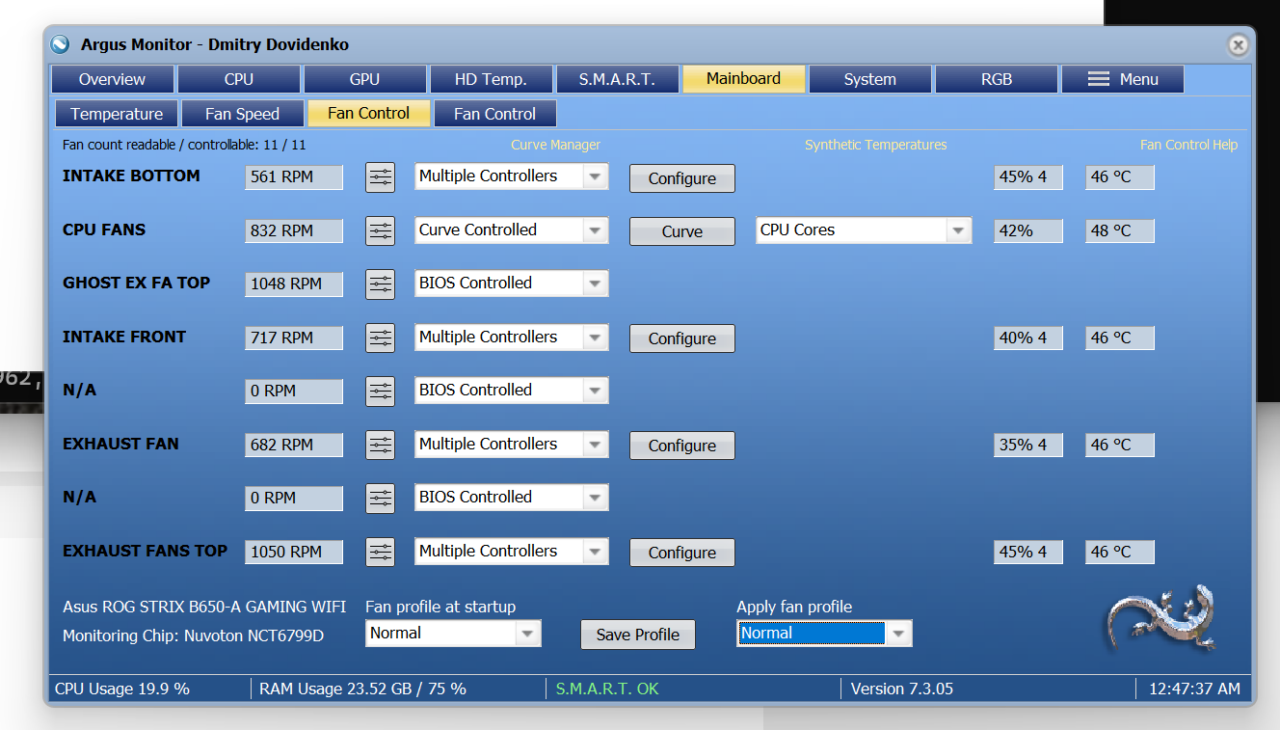
Boom with that last command I had a working configuration of Argus restored into my current registry. Argus fired right up and looked just like it did on my old install. Functioned perfectly!
As always when working with the registry there are risks!
I don’t take any responsibility for you breaking your Windows install.
If you have not changed any hardware in theory Argus should boot right up just like it did on your old system and manage it exactly the same way with no other changes needed. However, if you’ve changed hardware or if for some reason the various GUIDs no longer align, it may have lost some of your settings. Though the fan curves will still be retained!
If the Argus configuration isn’t working right you can always uninstall Argus and re-install it and set it up fresh or reference the .reg file for prior settings.

suPHP on CentOS 6 from Source Code
Reset Supermicro IPMI Password From Windows
See logged in users on CISCO IOS and disconnect them.
About Author
